Web Developer 101-Use Web Servers to Build Sites on your PC

- Description
- Curriculum
- FAQ
- Reviews
Hello:
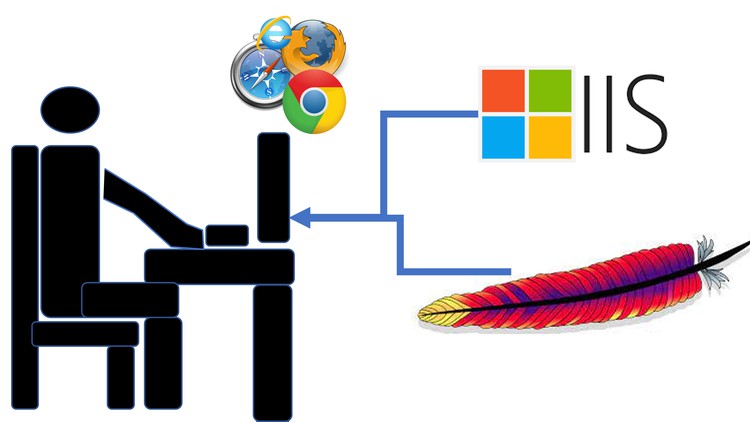
This class will cover a variety of ways to install and setup web servers on your pc so you can start making websites that you can locally view and test. The ways covered will include:
• Installing an Apache Web Server on the Ubuntu version of the Linux operating system (many custom configurations to the server will also be covered)
• Installing an Apache Web Server included with XAMPP on a Linux operating system (custom configurations to the server will also be covered)
• Installing a Microsoft IIS Web Server on a Windows operating system (many custom configurations to the server will also be covered)
• Installing an Apache Web Server included with XAMPP on Windows (refer to the Apache Server videos on Linux for custom onfigurations)
• Installing website builders like WordPress, Drupal and Joomla on both the Apache and Microsoft IIS Servers
• Setting up the ASP.NET core and NodeJS web development scripting frameworks on a Microsoft IIS Server
• Publishing your websites when they are ready to be hosted the World Wide Web using affordable Hosting options such as Bluehost, CPanel, and Github (free).
• How to use a paid web domain from GoDaddy for a website hosted on Github Paged
• How to use upload your local website files to your hosting provider using FileZilla and CPanel’s File Manager
The course will also have downloadable resources and a lengthy quiz.
-Brandon
-
1
 What is a web server?
This video distinguishes what consists of a web server. It talks about the two most essential components of a web server: the hardware and the software.
-
2
Which operating systems we will use
-
3
Understanding URL addresses
This video goes into how url addresses are used when websites get retrieved from web servers and are displayed on the browser.
-
4
Web Server Types
This video talks about the 4 web server softwares being used to store websites on the WWW and their popularity.
-
5
Why choose a 3rd party over self hosting
Listen to this video for information on why you might want to use a 3rd party like a GoDaddy to host your website rather than do it yourself.
-
6
Installation steps and Apache Server Filepaths
Local Apache Installation on Ubuntu so we can store websites. The install uses a pre-packaged install configured for the Ubuntu operating system.
-
7
Web servers and Web language compatibility: Front End Languages
This video provides insight on how web languages work and how Apache Web Server handles them.
-
8
Web servers and Web language compatibility: Server Side Languages
-
9
Installing PHP
-
10
Apache GUI (Installation)
-
11
Apache GUI (Walk through)
-
12
Linux File Permissions
This video will help if you have not used Linux previously.
-
13
Editing Website Files
This video will help if you have not used Linux previously. The Linux operating system does not give users the ability to edit website files for security reasons. This video offers ways to edit the files while maintaining security. The security is not too serious though because our web server we installed is local and not on the WWW.
-
14
Web Server Configuration Files and Changing the Root Directory
the httpd.conf file discussed in this video is the main config used in windows for your apache server
-
15
Changing the Directory Index
-
16
What is htaccess and how to enable it?
-
17
Error Handling: Error 404 Page/URL Rewrite with htaccess
-
18
Authentication with htaccess: Single-user login
-
19
Authentication with htaccess: Multi-user login
Setting up multiple password protections. Simply add a second user to the .htpasswd file provided in the previous lecture to test.
-
20
XAMPP Overview
An introduction to Apache Web Servers that are included with the XAMPP software.
-
21
Installation Steps
Installing the Apache Web Server included with XAMPP.
-
22
Ports
Additional details about computer ports.
-
23
Configurations
Detailing the configuration differences between the 1st Apache Web Server we installed and the Apache Web Server with XAMPP.
-
24
Using XAMPP
This video shows how to open the XAMPP console and how to access databases for your websites using PHPMyAdmin
-
25
Apache on Linux Wrap-Up
This video clarifies everything that was covered and distinguishing the differences between the two Apache Web Servers that were installed.
-
26
Install
-
27
Configurations Overview
-
28
Server Configurations Pt 1: Web Directory, Directory Index
-
29
Server Configurations Pt 2: Aliases, Virtual Hosts
-
30
Site Specific Configurations: Error 404 pages and rewrites (.htaccess)
-
31
Site Specific Configurations: URL Rewrite Extended
-
32
Website Password Protection with .htaccess
-
33
Introduction
Revisiting web server types and a quick summary introduction to Microsoft's IIS Web Servers.
-
34
Enabling IIS Server on Windows
This video shows how to enable IIS web server on your PC. It also shows you the IIS app you can use to manage your web server and websites on your webserver although you can also configure your websites and webserver in the applicationHost.config file, administration.config file, and redirection.config file located at C:WindowsSystem32inetsrvconfig
-
35
IIS Overview
-
36
Basic Settings (default website directory, website names, file permissions)
-
37
Host Headers (Virtual Hosts)
In this lecture, I provide one way to add a virtual host to your web server by adding an additional website with a unique host name although you can also use the same name as your existing website and just assign a different port. (localhost:5000 for example instead of just localhost)
-
38
Ports
-
39
Default Document
How to configure your website to automatically read specifically named files by default
-
40
Setting up passwords for your websites
-
41
lnstalling Modules
-
42
URL Rewrite Module Overview
-
43
URL Rewrite Module: Blank Rules
-
44
URL Rewrite Module: Canonical Domain Name Rule
-
45
Error Pages
-
46
Installing PHP
-
47
HTTP Response Headers
-
48
Virtual Directories
-
49
Proxy Servers (A Discussion and Setup Tips)
This is just a discussion. Please see the NodeJS Lectures in Section 8 for a walkthru on setting up a reverse proxy.
-
50
IIS Wrap-Up
-
51
Intro to Website Builders
-
52
Install Wordpress on your Apache Server included with XAMPP
-
53
Managing your WordPress Logins
-
54
Wordpress Pages and Themes
-
55
Wordpress Plugins, XAMPP Requirements, Uploading to hosting provider
-
56
Install Joomla on your Apache Server
-
57
Joomla Overview
-
58
Install Drupal on Apache Server
-
59
Drupal Overview
-
60
Installing Wordpress on IIS Web Server
Please make sure you have your IIS Web Server running and already installed prior to following these steps. IIS Web Server setup is covered in Lecture 29. Please also refer to lectures 49 and 50 for a basic overview of using wordpress after installing.
-
61
Installing Wordpress on IIS Web Server Pt 2 (Maria Database Server & DB Setup)
-
62
Installing Wordpress on IIS Web Server Pt 3 (PHP configs for plugins/themes)
-
63
Install Joomla on IIS Web Server
Please refer to lecture 52 for a basic overview of using joomla after installing
-
64
Wrap-Up: How to modify websites made with website builders for easy hosting
-
65
An Overview of coding your website
-
66
Native web languages and using the Notepad++ code editor to edit native scripts
-
67
A Basic HTML script
-
68
An Overview ASP.NET Framework in Visual Studio
-
69
Hosting ASP.NET Applications
-
70
NodeJS: Setup and Hosting a Visual Studio Project Template
-
71
Nodejs: Starting Server from terminal and Database Configurations
-
72
NodeJS: Setting up a MongoDB Server
-
73
NodeJS: Managing Databases on the MongoDB Server
-
74
NodeJS: Hosting App On IIS Using a Reverse Proxy
-
75
NodeJS: Installing IIS Node to host NodeJS Apps
-
76
NodeJS: Hosting App on IIS Using IIS Node
-
77
Wrap Up: Ideal web server setups/coding environments for a web developer
-
78
How 3rd Party Host Providers Host Sites
-
79
Recommended Hosting Options
-
80
Understanding Web Hosting on Amazon
-
81
Hosting on Github
-
82
Replacing preset Github URL with Custom Domain
-
83
cPanel Hosting Intro: An Interface for Apache
-
84
Setting up CPanel/Uploading Local Website Files
-
85
Website Configurations using htaccess files in the CPanel
-
86
Website Configurations using the CPanel User Interface
-
87
CPanel Apps and Wrap-Up