Procreate: Getting Started With Procreate on the iPad (2021)

- Description
- Curriculum
- FAQ
- Reviews
Learn how to use Procreate 5X on the iPad with the Apple Pencil for digital art, illustration, drawing and painting.
The iPad (Pro, Air 3, Mini 5, iPad 7) with Procreate 5X can be turned into a mini art studio, a powerful digital drawing tool that you can take with you anywhere. Procreate is one of the best digital art apps in the world of digital art.
I believe in the Learning by Doing principle. In this course you will complete four art projects. You’ll get to know many Procreate 5 tools and features. You’re going to draw, paint, create digital illustration, and animation. The projects in the course contain easy to follow steps. No previous drawing knowledge is necessary. We’re going to use digital pencil, ink, and brushes with colors to draw and paint. You will learn many tips & tricks in Procreate 5X.
Procreate is one of the best drawing apps on the iPad. If you just start to learn drawing and you don’t know where to start, the iPad + Procreate + Apple Pencil pairing is a perfect choice. If you’d like to learn sketching, drawing, painting digitally, or you plan to be an illustrator to create illustrations and design materials, Procreate is for you.
By the end of this course you’re going to feel confidence and strong foundation in working with the app.
This course is perfect for beginners. It’s also a kind of introduction to digital art.
Catch on quickly with Procreate. The last section contains a bonus project introducing all the new features of Procreate 5X update came out in Sep, 2020. So, make sure you get to the end, because it’s getting really exciting.
-
2
 How to Install Procreate 5
We're going to install Procreate quickly on the iPad.
-
3
Getting Started with Procreate 5
We're going to discover User Interface of Procreate, and we're going to change some of the default settings to get a better working environment. By the end of this 10-minute lesson you'll be able to use Procreate on a basic level.
-
9
How to Import a Reference Photo
We're going to import our reference photo which is a JPG file into Procreate on a new layer.
-
10
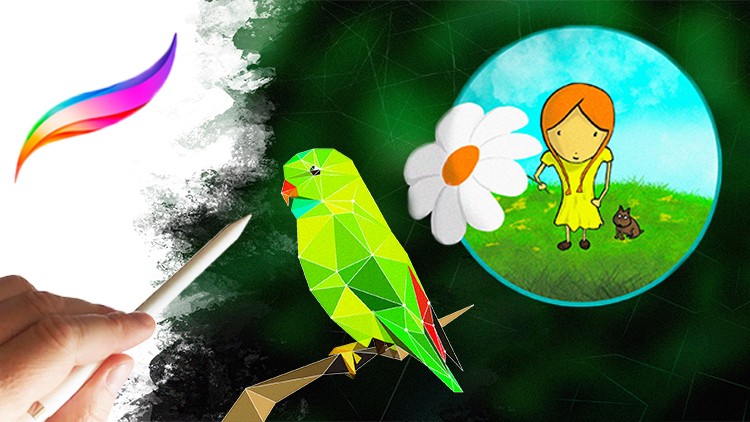
Draw a Low Poly Mesh
We're going to draw a low poly mesh on the bird reference photo we've just imported in the previous lesson.
-
11
Paint the Mesh with Colors
We're going to use the EyeDropper feature of Procreate to pick colors from the reference photo, and use the ColorDrop tool and the floating Color panel to paint over the low poly mesh.
-
12
Add Background to the Composition
We're going to start to build up our composition adding a forest background image to our canvas and make adjustments on that. We're also going to draw a branch our bird will be sitting on.
-
13
Add Text to your Artwork
We're going to add text to our artwork, and customize its appearance by changing its font type, font style, size, and other text properties.
-
14
Interesting Effects with Layer Mask
You're going to understand how layer mask works, and see examples of creative use of this feature in Procreate.
-
15
Using Opacity on the Background
We're going to use the opacity adjustment on the mesh we're adding to the background. Plus we're going to discover some of the interesting Procreate brushes that you can use to make your digital paintings more appealing.
-
16
Finalizing the Art Project
We're going to finalize our artwork applying an eye-catching effect on it using a certain painting brush and a mask layer combination.
-
17
How to Share your Artwork
We're going to export our finished artwork and save it as JPG image file into our Photo library. You will also learn how to send your artwork in an e-mail to a friend quickly.
-
18
Time-lapse Video about your Art
I'm going to show you how you can record your art creation process with Procreate. A the time-lapse video will be created that you can post on social media and share your art with the world.
-
19
Add Noise to your Image
You can learn how to apply a newspaper style noise adjustment on your final image.
-
21
Introduction to Procreate 5X
-
22
Procreate 5X Version Check
-
23
Private Layer in Procreate 5X
-
24
Text Scribble
-
25
Instant Palette & SwatchDrop
-
26
QuickMenu Profiles
-
27
Color Fill With Selection Tool
-
28
Reference Companion
-
29
Blur Brushes
-
30
Transform Bounding Box & Snapping
-
31
New Adjustments & Pencil Filters
-
32
Gradient Map
-
33
Bloom
-
34
Glitch
-
35
New Copy & Paste Popup Menu
-
36
Halftone
-
37
Chromatic Aberration
-
38
Procreate Widget
-
39
Transparent Background Animation
-
40
Private Layer
-
41
Crop & Resize Snapping
-
42
FacePaint