Introduction to Microsoft Word for Beginners to Intermediate

- Description
- Curriculum
- FAQ
- Reviews
Hi Everyone, my name is Israr Ahmed and in this tutorial series, I will be teaching you Microsoft Word Application version office 365.
In this lesion you will be able to learn the basic of Microsoft word application. You will able to practice on formatting and saving a word document in the application.
You will be able to know how to compose and save a document.
Using composing and editing features, you will be able to type words, sentences and make paragraphs. You can write letters, application, and memos in a word document.
Then you can also insert table, images, and shapes. You can prepare certificates templates to fill your office requirements as well.
Then you can see different kind of printing options are available inside word application so you can print your document whenever you want as a hard copy or soft copy to keep with you for further use in the future.
You will be able to learn select/change a printer (connected with your computer).
Printing documents (single side or duplex side)
Changing of page layout, orientation, paper size and much more.
I will give you some practice test and short keys (hot keys of word application) as well to make you memorize in the mind and keep you energetic during the course learning.
Keep watching. Stay tuned with me and goodbye.
-
1
 Intro and History of Microsoft Office
You will be able to know about the history of Microsoft Word; when application was developed.
-
2
Purpose & Benefits of Microsoft Word
You will know about several benefits and purpose of Microsoft word. Microsoft Office and its products are being in used from school to professional environment to complete the office work.
-
3
Features of Formatting and Saving
In this section, you will learn about
Formatting and Saving – How you can format and save your word documents.
The file will save with a .doc or .docx extension in modern word application.
-
4
Features of Composing and Editing
Using composing and editing features, you will be able to type words, sentences and make paragraphs. You can write letters, application, and memos in a word document.
Then you can also insert table, images, and shapes. You can prepare certificates templates to fill your office requirements as well.
-
5
Printing Options
In this section, you will be able to learn select/change a printer (connected with your computer).
Printing documents (single side or duplex side)
Changing of page layout, orientation, paper size and much more.
-
6
Microsoft Word Interface Part 1
Microsoft Word is a word processing application that allows you to create a variety of documents, including letters, resumes, and more. In this lesson, you'll learn how to navigate the Word interface and become familiar with some of its most important features, such as the Ribbon, Quick Access Toolbar, and Backstage view.
When you open Word for the first time, the Start Screen will appear. From here, you'll be able to create a new document, choose a template, and access your recently edited documents. From the Start Screen, locate and select Blank document to access the Word interface.
-
7
Microsoft Word Interface Part 2
-
8
Practice: Intro to File Menu (MS Word Office 365)
After learning and practicing on this section, you will be able to format and save a word file with following techniques.
1. Introduction to File Menu
2. Feature of font formatting
3. Designing header and footer for your document
4. Formatting paragraph and Styles
5. Layout your document
-
9
 Quiz: Shortcut Keys
This quiz will enable you to memorized the basic shortcut keys used in MS Word. At the end of full course, you will be able to practice more keys.
-
10
Practice: Feature of Font Formatting
This tutorial will cover the practice on feature of font formatting. After learning from this tutorial you will be able to use the Font option with several function available with. So watch again and again if you don't understand and take a practice as well.
-
11
Quiz: Shortcut Keys
This quiz will enable you to memorized the basic shortcut keys used in MS Word. At the end of full course, you will be able to practice more keys.
-
12
Practice: Designing Header and Footer for Your Document
After learning and practicing on this section, you will be able to deal with header and footer elements in a word file with following techniques.
•Insert Header (Different Header Style)
•Edit Header (Update Header Text)
•Remove Header
•Insert Footer (Different Footer Style)
•Edit Footer (Update Footer Text)
•Remove Footer
•Insert Page Number (Top, Bottom, Page Margin, Current Position)
•Format/Edit Page Number
•Remove Page Number
•Insert Date & Time on Header/Footer
Insert Any Logo/Picture on header/footer (With Different Position on Page)
You will also know about the navigation system between header and footer; and how to increase or decrease the area for your header and footer elements in the document.
-
13
Quiz: Shortcut Keys
This quiz will enable you to memorized the basic shortcut keys used in MS Word. At the end of full course, you will be able to practice more keys.
-
14
 Header and Footer Activity
 -
15
Practice: Formatting Paragraph and Styles
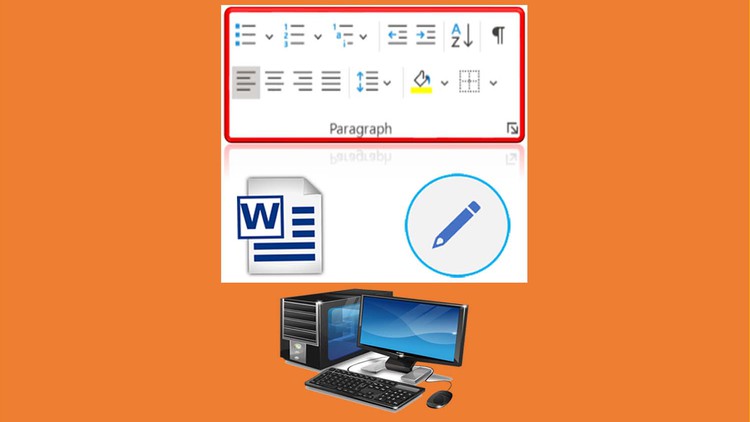
In this tutorial, you will learn techniques to format the paragraph and give styles in MS Word.
This lesson is divided into two part.
1. Formatting Paragraph
2. Styles
First part contains the answer and practice of the following question.
How to;
Insert Bullet
Insert Number
Insert Multilevel list
Decrease Indent
Increase Indent
Sorting Data in a Table base on Text, Number or Date
Show/Hide Icon of Formatting Symbols
Text Alignment
Line Space Option
Change Background Color of Selected Text, Section or Sentence in a paragraph
Insert Border
Continue Practice on Second Part of the lesson....
-
16
Quiz: Shortcut Keys
This quiz will enable you to memorized the advance shortcut keys used in MS Word. At the end of full course, you will be able to practice with more collection of keys.
-
17
Practice: Paragraph Heading Styles Continue
In this tutorial, you will learn techniques to format the paragraph and give styles in MS Word.
This is 2nd part of the lesson and you will learn working with styles in this lesson.
Applying predefined styles
Create a Style
Clear Formatting
Apply a Style
Update/Remove Style from Gallery
So practice, practice and practice to be expert in this topic.
-
18
Quiz: Shortcut Keys
This quiz will enable you to memorized the advance shortcut keys used in MS Word. At the end of full course, you will be able to practice with more collection of keys.
-
19
Practice: Layout your Page - Change Page Orientation
In this lesson, you will be able to know how to change the page orientation of your word document.
Its very easy to change the document between portrait to landscape and vice versa. So enjoy the lesson.
-
20
Practice: Layout your Page - Margin Setting
In this lesson, you will now how to apply different margin available in a word document.
1. Apply and Check Several Margin Built-in Setting
2. Customize Margin Setting
So enjoy the lesson and practice.
-
21
Practice: Layout your Page - Change Page Size
In this lesson, you will now how to apply different size of page available in a word document.
1. Apply and Check Several Page Size
2. Customize Page Size Setting
So enjoy the lesson and practice.
-
22
Practice: Layout your Page - Break Text into Column
In this lesson, you will now how to break or divide text and paragraph into column writing styling on the page available in a word document.
1. Apply and Check Several Columns
2. Customize Column Space and Number of Column
So enjoy the lesson and practice.
-
23
Quiz: Shortcut Keys
This quiz will enable you to memorized the advance shortcut keys used in MS Word. At the end of full course, you will be able to practice with more collection of keys.