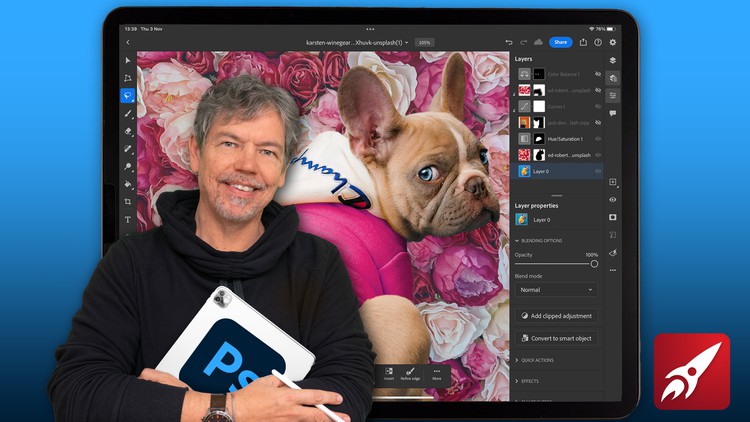
Beginner to Expert: Adobe Photoshop on the iPad

- Description
- Curriculum
- FAQ
- Reviews
Learn to Edit and Retouch Your Images and Make them come to Life in This Comprehensive Photoshop on the iPad Course.
Hi – I’m Tim and I’m an Adobe Certified Instructor and Adobe Certified Expert and designer working in and around London.
This course is an introduction to Adobe Photoshop on the iPad with tutorials and step-by-step projects, starting right from the beginning for complete beginners. You do not have to have any Photoshop experience at all, including Photoshop on the Desktop complete this Photoshop on the iPad course. You also do not need Photoshop on the Desktop – everything will be done on the iPad.
Together we will look at a specific set of tools and techniques. Then I will give you some projects to complete to reinforce your knowledge.
All the content can be adapted for both print or web.
You will learn the basics of Photoshop for the iPad and solidify your knowledge by creating multi-image compositions, retouching old and new images, color-correcting images, working with non-destructive adjustment layers as well as selections.
This course is for anyone new to Photoshop on the iPad, whether you have used Photoshop on the Desktop or not or if you have Photoshop knowledge and want to translate your skills onto the iPad version. All you need is an iPad with an Apple Pencil and copy of Adobe Photoshop for the iPad.
During the videos there will also be key phrases that appear to help you remember tools, shortcuts and techniques.
At the end of this course you will have good understanding of the basics of Photoshop on the iPad and will be able to create simple yet eye-catching and exciting images.
All the exercise files come from the Royalty Free websites Unsplash and pixabay.
Music by Bensound.
-
11
 Introduction to Layers
All the downloads for this Layers section and the next Tone & Color section are here.
-
12
How Layers Work
-
13
Changing Layer Stacking
-
14
Filters & Adjustments
-
15
Paint on Blank Layer
-
16
Layer Transparency
-
17
Adjustment Layers
-
18
Clipped Adjustment Layer
-
19
Linking & Grouping Layers
-
20
Introduction to Tone & Color
-
21
Brightness & Contrast
-
22
Understanding Levels
-
23
Mid Tone Levels
-
24
Adjusting Tones with Curves
-
25
Changing the Exposure
-
26
How to Color Balance Your Document
-
27
Brightening the Colors with Vibrance
-
28
Changing the Hue & Saturation
-
29
Converting Your Image to Black & White
-
30
Introduction to Selection Tools
-
31
Lasso & Adjustment Layer
-
32
Adding & Subtracting from Selections
-
33
Using the Object Selection Tool
-
34
Object Selection on People & Animals
-
35
The Quick Selection Tool
-
36
Marquee Selection Circle & Rectangle
-
37
Using the Magic Wand Tool
-
38
Action: Select Subject
-
39
Action: Remove Background
-
47
Project: Social Media Post Introduction
-
48
Create a Blank Document & Blend 2 Images
-
49
Add a Third Image with Mask
-
50
Add Adjustment Layers
-
51
Add New Image, Select Refine Mask
-
52
Adjust Adjustment Layers
-
53
Add Color Balance on Selected Areas
-
54
Link Layers
-
55
Add Text
-
56
Add More Text
-
57
Save Your Image
-
58
Introduction to Brushes & Retouching
-
59
Understanding Brushes
-
60
Choosing Color
-
61
Paint Brush Roundness, Flow, Smoothing & Pressure
-
62
Recoloring Part of an Image
-
63
Eraser & Spot Healing Tools
-
64
Clone & Healing Brushes
-
65
Lightening and Darkening with the Dodge & Burn Tool
-
66
The Smudge Tool
-
67
Using the Paint Bucket to Flood Areas with Color
-
68
Creating Gradients
-
69
The Amazing Content Aware Tool
-
70
Using the Crop Tool