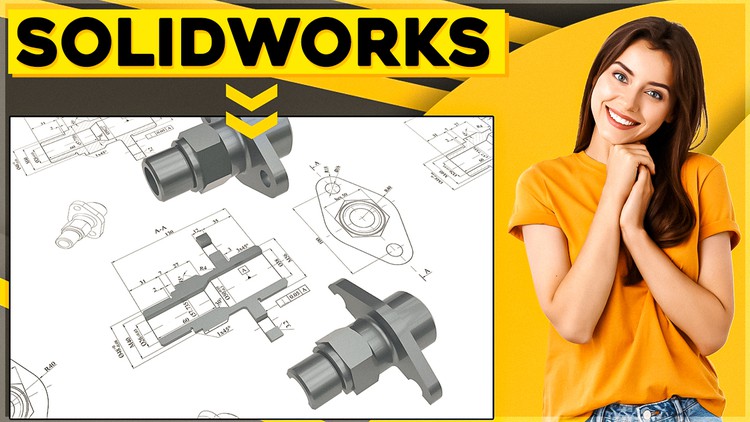
Become SOLIDWORKS DRAWINGS Professional In Just 3 hrs

- Description
- Curriculum
- FAQ
- Reviews
★★★ Learn To Create Drawings Like SOLIDWORKS Professional In Just 3 Hours Without Drawings Experience + (CSWPA-DT) Exam Prep ★★★
The problem is that most of the students…
1. Don’t have the right mind strategy to think like a designer
2. They are not able to find the quickest way to find the design solution
3. They don’t know how to approach to the design problem
If you want come on the exam relaxed and full of confidence in your Solidworks drawing skills let me introduce you to the training that will get you prepare even if you never touched Solidworks Drawings before.
In this course you will get skills, training and examples to overcome those obstacles and pass Solidworks CSWPA – DT exam easily even with spare time left by going through…
1. Learning to create drawing sheet, how to inert views, how to put dimensions, how to edit sheet and how to save drawing file. Then we will continue with showing how to create different views such as section view, relative view, auxiliary view, detail view, broken-out section view, break view, alternate position view, crop view and isometric section view.
2. Learning Surface finish tool, Weld symbol tools, Measure tool and some other tools and techniques.
3. Learning to create a Bill of Materials table (BOM), how to create BOM, how to sort BOM, how to find missing items, how to edit properties, how to use equations, how to show/hide components, how to use linked notes and how to measure drawing views.
4. Learning sample questions, those questions are similar are will find on the exam. I advise you to go through those question by yourself. If you stuck somewhere you can always watch video tutorial or contact me via email.
5. 2 CSWPA-DT Drawing Tools Professional exams. In Solidworks is all about practicing . Your skills will be sharpen if you dive in directly by yourself. That’s why this course is providing bunch of exercises that you have to solve individually. But everything you need to know will be shown in the lectures.
6. You’ll gain confidence to negotiate for bigger salary
7. You’ll be able to start your Solidworks CAD Drawings designer career and start making money
8. You’ll start to think like a CAD designer
9. You’ll be able to confidently list your SOLIDWORKS Drawings skills in your resume
Now what makes me credible to teach you this topic?
I have master’s degree in mechanical engineering and I’m Solidworks certified professional designer. I have over 5 years industry experience in using Solidworks, CATIA and AutoCAD where I was designing resistance welding machines.
On the other hand last two years I have enrolled over 30 000 students on my 12 courses with my average courses rate 4.6 out of 5.
This course can transform your Solidworks skills, your career and at the end your life as you know but don’t take my word for it.
Read just few of these raving student testimonials for yourself…
★★★★★ ” Simple, well presented, and easy to follow.“ – Matthew C.
★★★★★ ” Great course with lectures presented in short and simple manner.“ – Hizami H.
BONUS: Students who enroll today will receive my lifetime personal email support. So you can contact me anytime regarding any question you have.
30-DAY GUARANTEE: If you don’t see incredible results from this course within the next 30 days, Udemy will refund your entire investment!
You literally have nothing to lose and so much to gain!
ADD TO CART now to truly change your life forever!

-
6
 Setting Up A Drawing Sheet
 -
7
Orthographic Views
-
8
View Properties And Projected View
-
9
Driving Vs Driven Dimensions
-
10
Driving Dimensions
-
11
Driven Dimensions
-
12
Baseline Dimensions
-
13
Ordinate Dimensions
-
14
Angular Dimensions
-
15
Chamfer Dimensions
-
16
Model Items - Assembly
-
17
Dimension Properties
-
18
Dimension Style
-
19
Document Properties
-
20
View Focus